Add Pepmax to your store
The post-purchase kit is one ready-made block for your order-confirmation page — it points your customers to the Pepmax app right after they buy, so they track what they ordered properly. Copy it, paste it into any Custom HTML slot, and you’re done in under two minutes.
This is what your customers see
A live render of the block, exactly as it will appear on your thank-you page. The button and QR code both go to getpepmax.com/download, which sends each customer to the right app store.
Thank you. Your order has been received.
Order #10248 · A receipt is on its way to your inbox.
Served live from getpepmax.com — the card improves over time without you touching anything, and downloads are credited to your store automatically.
Paste it in — two minutes, tops
Block themes
- 1Copy the block above.
- 2In WordPress, go to Appearance → Editor → Templates → Order Confirmation.
- 3Add a Custom HTML block where you want it and paste.
- 4Save, then place a test order to see it live.
Classic themes
- 1Copy the block above.
- 2Add an HTML widget to your thank-you page — or hook the snippet to
woocommerce_thankyouwith your code-snippets plugin. - 3Paste, save, and check with a test order.
Any other platform
- 1Copy the block above.
- 2Open your platform’s order-confirmation (thank-you) page editor.
- 3Paste into any Custom HTML slot. The block is fully self-contained — no scripts, and the only asset it loads is one image from getpepmax.com.
Building a custom storefront? See the developer integration ↓
Or use the image instead
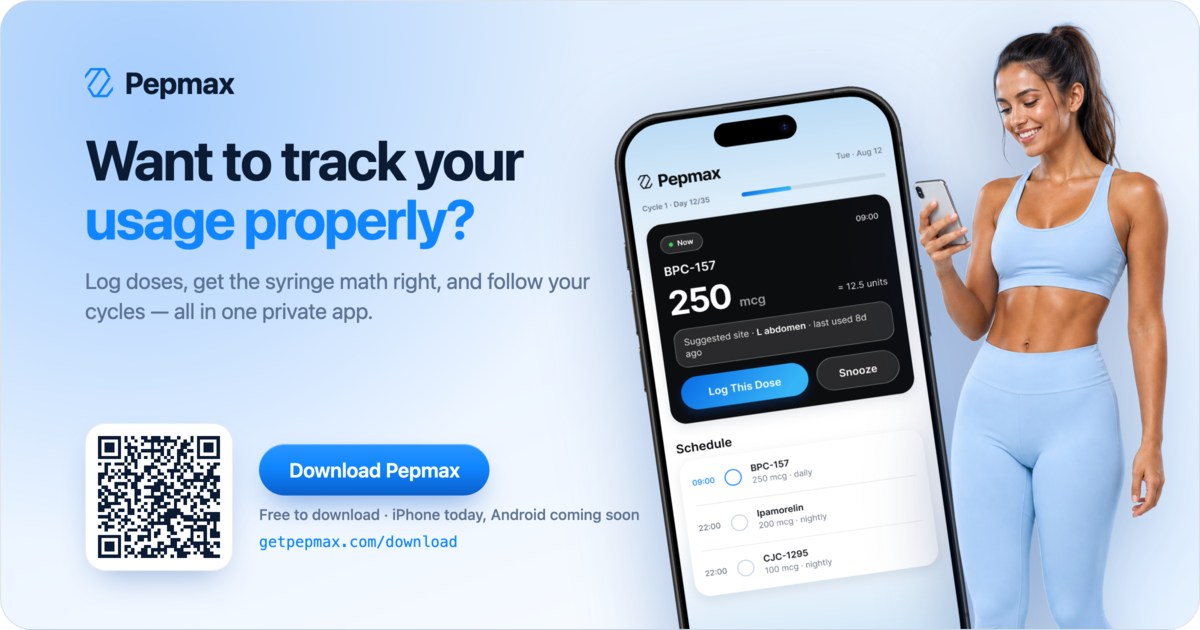
Same message, one flat 1200×630 image with the QR code baked in — it works anywhere an image does: confirmation emails, page builders, newsletters.
- 1. Save the image and add it to your confirmation page or email.
- 2. Link it to https://getpepmax.com/download so tapping it works as well as scanning it.
Developer integration
Headless storefront, hand-rolled checkout, or anything without a “Custom HTML” slot — the card is one iframe served from getpepmax.com, so it drops into any stack. Here are the seams.
1. The iframe — any stack
Mount it wherever your order-confirmation page renders. The small listener keeps the frame fitted to the card as it reflows.
<iframe id="pepmax-embed"
  src="https://www.getpepmax.com/embed/post-purchase"
  title="Download Pepmax — track your usage properly"
  style="display:block;width:100%;border:0;height:470px"></iframe>
<script>
  // Keeps the frame fitted to the card (it stacks taller on phones).
  window.addEventListener("message", function (e) {
    if (
      (e.origin === "https://www.getpepmax.com" || e.origin === "https://getpepmax.com") &&
      e.data && e.data.type === "pepmax-embed-height"
    ) {
      var f = document.getElementById("pepmax-embed");
      if (f) f.style.height = e.data.height + "px";
    }
  });
</script>
2. React / Next.js
The same thing as a component. Pass code to pin your partner code; omit it to attribute by your domain.
'use client';
import { useEffect, useRef } from 'react';

const ORIGINS = ['https://www.getpepmax.com', 'https://getpepmax.com'];

export function PepmaxPostPurchase({ code }: { code?: string }) {
  const frame = useRef<HTMLIFrameElement>(null);

  useEffect(() => {
    const onMessage = (e: MessageEvent) => {
      if (!ORIGINS.includes(e.origin) || e.data?.type !== 'pepmax-embed-height') return;
      if (frame.current) frame.current.style.height = `${e.data.height}px`;
    };
    window.addEventListener('message', onMessage);
    return () => window.removeEventListener('message', onMessage);
  }, []);

  const src =
    'https://www.getpepmax.com/embed/post-purchase' +
    (code ? `?ref=${encodeURIComponent(code)}` : '');

  return (
    <iframe
      ref={frame}
      src={src}
      title="Download Pepmax — track your usage properly"
      style={{ display: 'block', width: '100%', border: 0, height: 470 }}
    />
  );
}

// On your order-confirmation page:
// <PepmaxPostPurchase />                 — attributes by your domain
// <PepmaxPostPurchase code="YOURCODE" /> — pins your partner code
3. Pin your partner code
Normally the card finds your code from the domain it’s embedded on. Pin it explicitly when your checkout lives on a different domain than the one on your application, you run several storefronts, or your site strips referrers.
https://www.getpepmax.com/embed/post-purchase?ref=YOURCODE4. No JavaScript? Receipts and emails
Where scripts can’t run, use the banner image and link it to your share link — the tap still carries your code, and the QR is baked into the pixels for the print-and-scan crowd.
<!-- Server-rendered receipts, order emails, anywhere scripts can't run -->
<a href="https://getpepmax.com/r?c=YOURCODE">
  <img src="https://getpepmax.com/partners/pepmax-post-purchase-banner.png"
       alt="Want to track your usage properly? Download Pepmax"
       width="600" style="display:block;width:100%;max-width:600px;height:auto">
</a>
<!-- No partner code yet? Link to https://getpepmax.com/download instead. -->
What the embed does
- Attribution
- The card’s button links to
getpepmax.com/download?utm_source=<your-domain>&utm_medium=embed. The domain comes from the iframe’s referrer, so it works with the defaultReferrer-Policy(strict-origin-when-cross-origin). If your site sendsno-referrer, pin your code with?ref=instead. - Partner code
- Once you’re an approved affiliate with a claimed code, the card shows “Partner code YOURCODE — enter it when you sign up.” Detected by your domain automatically, or pinned with
?ref=. Codes are validated server-side; an unknown or inactive code renders no line. - Sizing
- The embed posts
{ type: "pepmax-embed-height", height }to the parent on load and whenever the card resizes. Listen for it to fit the frame; without a listener the fixed470pxis right on desktop and clips the taller stacked layout under 640px. - Appearance
- Transparent background — the card sits directly on your page. Rounded 24px card, ~470px tall on desktop; under 640px it stacks (copy, button, then the visual) and hides the QR, since on a phone the button is one tap from the store.
- CSP
- If you set a Content-Security-Policy, allow
frame-src https://www.getpepmax.com. The embed itself makes no requests to your site and reads nothing from the parent page. - Updates
- Served live from getpepmax.com — design and copy improvements ship to every store at once, and Android support turns on for everyone the day it launches. Nothing to redeploy on your side.
Test it in two minutes
- 1Place a test order and open the confirmation page — the card renders and fits with no scrollbar.
- 2Resize to phone width — the card stacks and the QR disappears.
- 3Tap the button — the download URL carries utm_source=<your domain> (or your pinned code).
- 4Approved affiliate? Confirm the “Partner code …” line shows under the button.
Stuck on something stack-specific? support@getpepmax.com — we’ll get you wired up.
Want a commission on the subscribers you send?
The kit is free to use as-is. If you’d like a tracked link and a cut of every subscription it brings in, apply for an affiliate code.